Quick Start
This walkthrough gets you from a fresh launch to a couple of Claude sessions working in parallel on their own branches — plus a scheduled task running on its own.
1. Create a project
Section titled “1. Create a project”A project is a name plus a folder that groups everything you do there.
- Open spwn.
- Click + New Project, give it a name, and pick the folder you want Claude to work in.
The tree on the left lists your projects and the sessions under each, and updates automatically as sessions start — including ones created by forking.
2. Open a session (or a shell)
Section titled “2. Open a session (or a shell)”Inside a project you can open two things:
- + New session — a Claude session with an isolated worktree and conversation.
In a git repo it runs on its own
spwn/…branch. - + New shell — a plain terminal in the project folder, for git, builds, and tests.
Either way it keeps running in the background and is still there when you reopen the app. A Claude session gives you a clean, scrollable conversation on one side and the full Claude Code experience — every slash-command and tool prompt — on the other.
3. Run a few in parallel
Section titled “3. Run a few in parallel”Because each Claude session has its own branch and its own copy of the files, you can open several and let them work at the same time without them clashing. Start a second session on a different task and switch between their tabs freely — nothing on disk moves when you switch.
See Branches & Merging for how the branches and worktrees work.
4. Merge the good work back
Section titled “4. Merge the good work back”When a session has produced something you want to keep, bring it into your base branch:
use the ⤵ Merge action, or merge its spwn/… branch yourself with plain git.
Nothing merges automatically — you decide what lands. See
Branches & Merging.
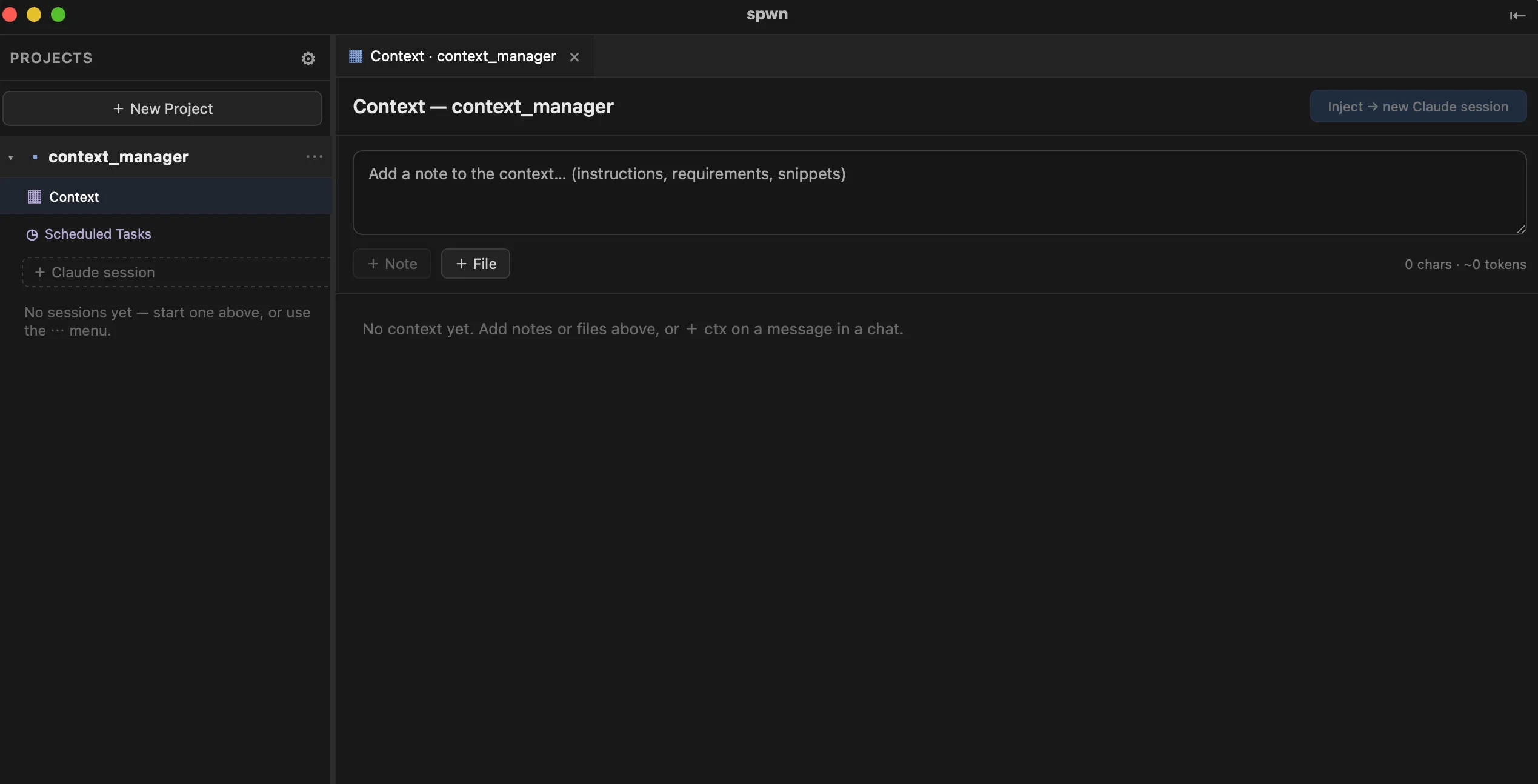
5. Seed a session from the Merge tray
Section titled “5. Seed a session from the Merge tray”Rather than starting a Claude session cold, seed it with the context that matters:
- Open the project’s ▦ Merge tray.
- Add notes, files, and answers worth keeping from other sessions (use + ctx on a message to save a turn).
- Click Inject → new session.
spwn opens a new Claude session that starts with exactly the context you composed, so you skip re-explaining the project.
6. Fork or return as you go
Section titled “6. Fork or return as you go”- Fork a session to branch off and try a different direction — the original keeps running untouched.
- Use the Timeline (with ↺ Return here) to roll a session back to an earlier point and continue from there.
See Fork & Timeline for details.
7. Schedule a task
Section titled “7. Schedule a task”Have Claude check in on the project while you’re away:
- Open the project’s ◷ Scheduled Tasks view.
- Add a task — a prompt, and a daily or weekly time to run it.
- Leave spwn running (it tucks into the menu bar).
At the scheduled time, Claude runs the task read-only using the project’s Merge tray, and the result is waiting as a new session under the project.
See Scheduled Tasks for details.